S24 screenshot is one of the most useful features on the Samsung Galaxy S24. Taking a screenshot helps you save important information share conversations or capture moments from apps and videos. Many users rely on this feature daily without thinking about how powerful it really is.
Samsung has made taking screenshots simple and flexible. There are multiple ways to capture your screen depending on your preference. Whether you want a quick button press or a hands free gesture the S24 makes it easy.
This guide explains everything about s24 screenshot in a clear and simple way. You will learn how to take screenshots edit them and manage them with ease.
How to Take a Screenshot on Samsung S24
The most common way to take an s24 screenshot is using the buttons. You press the power button and the volume down button at the same time. Hold them briefly and the screen flashes to confirm the capture.
Another popular method is palm swipe. You swipe the edge of your hand across the screen from one side to the other. This gesture works when enabled in settings. It feels natural and fast once you get used to it.
You can also use the quick panel. Pull down the notification shade and tap the screenshot option. This is helpful when using one hand or when buttons are hard to reach.
Voice assistants can also help. You can ask the phone to take a screenshot and it will do it for you. This is useful when your hands are busy.
Each method gives you the same result so you can choose the one that feels best.
Screenshot Editing and Tools
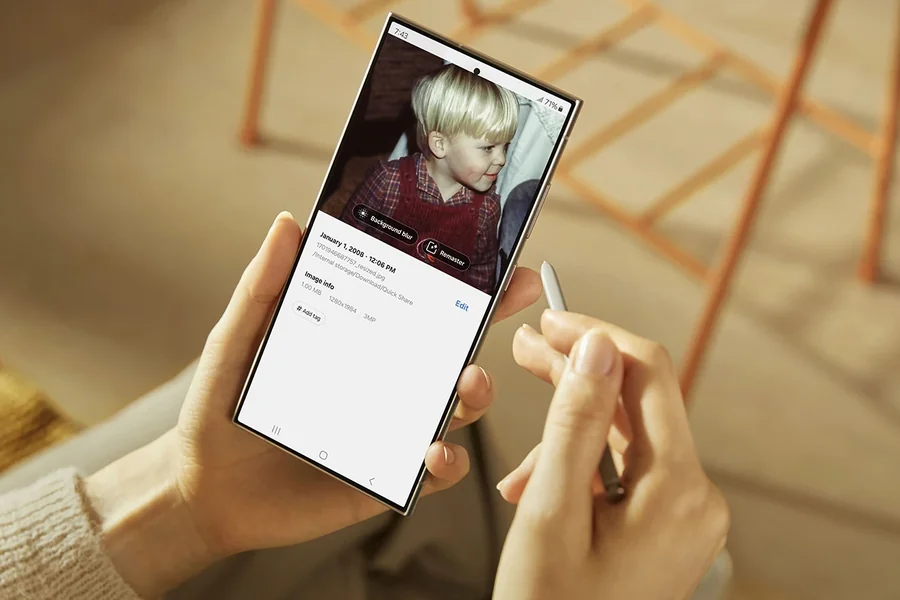
After taking an s24 screenshot you will see a preview on the screen. This preview allows quick editing before saving. You can crop the image draw on it or add text.
Samsung includes a smart editor that is easy to use. You can highlight important parts or blur private information. This is helpful when sharing screenshots with others.
There is also a scroll capture option. This allows you to capture a long page like a website or chat. The phone scrolls automatically and stitches everything into one image.
Editing tools are simple but powerful. You do not need extra apps to make quick changes.
Once edited the screenshot saves automatically to your gallery. You can share it right away or access it later.
Where Screenshots Are Saved
Every s24 screenshot is saved in the gallery app. You can find them in a folder named Screenshots. This makes it easy to locate them later.
You can also access screenshots through file manager apps. They are stored in the internal storage under pictures.
The gallery allows sorting by date which helps find recent screenshots quickly. You can also move or delete them anytime.
If you use cloud backup your screenshots may sync automatically. This helps keep them safe and accessible across devices.
Managing screenshots regularly helps keep your storage clean and organized.
Tips for Better Screenshot Use
To get the best results make sure your screen is clean before capturing. This avoids unwanted marks or smudges in the image.
Use landscape mode when capturing wide content. This helps fit more information in one image.
For long conversations use scroll capture instead of multiple screenshots. It saves time and looks cleaner.
If you take many screenshots consider organizing them into albums. This makes searching easier later.
You can also rename screenshots for better identification especially for work or study use.
Common Screenshot Issues and Fixes
Sometimes s24 screenshot may not work due to settings. Check if palm swipe is enabled if that method fails.
If buttons do not respond try restarting the phone. This often fixes temporary issues.
Make sure your phone has enough storage. Low space can prevent screenshots from saving.
Updating your device can also fix bugs related to screenshot features.
If problems continue resetting settings may help without deleting data.
Final Thoughts
S24 screenshot features make capturing and sharing content simple and fast. Samsung offers multiple ways to take screenshots which suits different users.
With built in editing tools and easy access the experience feels smooth and reliable. Whether for work study or fun screenshots are always within reach.
Learning how to use these features fully helps you get the most out of your Galaxy S24.
FAQ
How do I take an s24 screenshot?
Press the power and volume down buttons together or use palm swipe.
Where are s24 screenshots saved?
They are saved in the gallery under the Screenshots folder.
Can I take long screenshots on s24?
Yes, you can use the scroll capture feature.
Can I edit screenshots on s24?
Yes, you can crop draw and add text after capturing.
Why is my s24 screenshot not working?
Check settings storage space or restart your device.